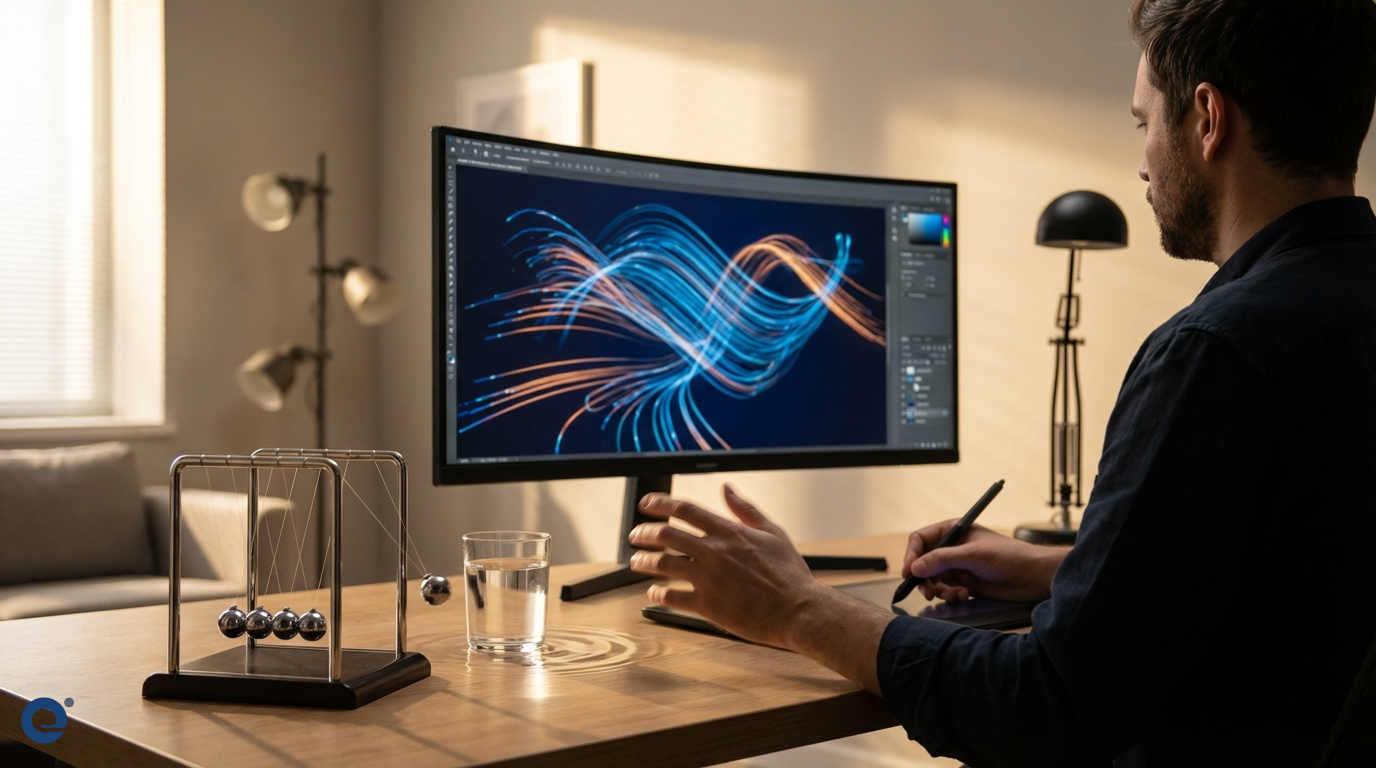
In the world of motion design, creating movement that feels natural, fluid, and engaging is paramount. Smooth motion is not just about moving elements from point A to point B; it's about imbuing those elements with life and making them believable. Therefore, understanding and mastering smooth motion techniques is crucial for any motion designer.
The essence of smooth motion
Smooth motion captivates the viewer. It guides the eye effortlessly and enhances the storytelling. Conversely, jerky or unnatural motion can be jarring and detract from the message. Achieving smoothness involves a deep understanding of timing, spacing, and the physics of movement, or at least the illusion of it.
The 12 principles of animation: Your foundation
The classic 12 principles of animation are the bedrock of creating believable and smooth movement. While originally developed for character animation, they are incredibly relevant to motion graphics.
Slow in and slow out (Easing)
This is perhaps the most critical principle for smooth motion. Most objects in the real world don't start or stop moving abruptly; they accelerate and decelerate. Applying "Slow In and Slow Out," or easing[1], to your keyframes mimics this natural acceleration and deceleration, making movement feel much smoother and more organic.
Arcs
Most natural movements follow an arc. Whether it's a thrown ball or the swing of an arm, things rarely move in perfectly straight lines. Incorporating arcs into your animation paths adds a layer of naturalism and fluidity, contributing significantly to smooth motion.
Timing and spacing
Timing refers to the number of frames between two poses, while spacing refers to how those frames are distributed. Closer spacing creates slower movement, while wider spacing results in faster movement. By carefully controlling timing and spacing, especially with easing, you dictate the rhythm and smoothness of the motion.
Follow through and overlapping action
When a main object stops, parts connected to it often continue to move for a bit (follow through), and different parts of an object move at different rates (overlapping action). This adds realism and smoothness, preventing abrupt stops.
Mastering easing and interpolation
Digital animation software provides tools to control how motion occurs between keyframes, known as interpolation[2]. The most common types are linear and bezier (or ease) interpolation.
Linear vs. bezier
Linear interpolation creates constant speed between keyframes, often resulting in robotic movement. Bezier interpolation, on the other hand, allows for smooth acceleration and deceleration, controlled by handles that shape the motion curve. Mastering bezier curves is essential for smooth motion.
Types of eases
You'll encounter ease-in (slow start), ease-out (slow stop), and ease-in-out (slow start and stop). Most software offers presets and the ability to customize these eases using a graph editor.
The role of the graph editor
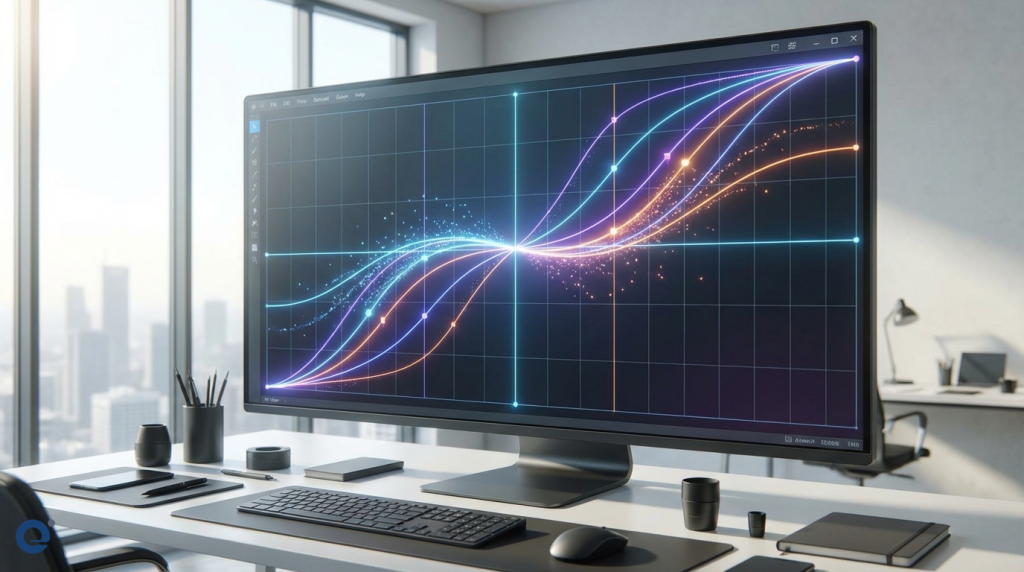
The Graph Editor (or Curve Editor) is your best friend for fine-tuning motion. It visually represents the speed and value of an animated property over time. By manipulating the curves, you can precisely control the easing, creating subtle and complex speed changes that result in incredibly smooth and nuanced motion.
Motion blur: Simulating reality
In the real world, fast-moving objects appear blurred to our eyes and on camera. Adding motion blur[3] to your animations mimics this effect, significantly enhancing the perception of speed and smoothness. Most software allows you to enable and adjust motion blur settings.
However, use it judiciously. Too much motion blur can make the animation look mushy, while too little might not sell the speed. Experiment with shutter angle and samples to get the right look. For instance, photographic panning techniques often result in motion blur in the background, emphasizing the subject's movement.
Frame rate considerations
The frame rate[4], or the number of frames displayed per second (fps), directly impacts the smoothness of motion. Higher frame rates (like 60fps) generally provide smoother motion than lower frame rates (like 24 or 30fps). However, the standard for film is 24fps, and video is often 25 or 30fps. Choose a frame rate appropriate for your delivery medium and stick to it.
Sometimes, a lower frame rate is a stylistic choice, but for inherently smooth motion, especially for digital displays, 60fps can be very effective.
Advanced techniques for buttery smooth motion
Beyond the basics, several advanced techniques can elevate your motion smoothness.
Overshoots and bounces
Adding subtle overshoots or bounces when an object comes to a stop can make it feel more dynamic and less rigid. Imagine a ball bouncing to a stop or a UI element slightly overshooting its target before settling. These add character and a sense of weight.
Refining with the graph editor
The Graph Editor[5] allows for incredibly detailed control. You can create custom ease curves, add anticipation by having a slight counter-movement before the main action, and fine-tune the spacing to perfection. Spend time here; it's where the magic happens.
Expressions and code
For more complex or procedural smooth motion, expressions (like in Adobe After Effects) or scripting can be powerful. You can use mathematical functions to define motion, like sine waves for smooth oscillations or spring physics for natural bounces and damping.
Inspired by photography
Techniques from photography, such as rear curtain flash, which creates a light trail behind a moving object before freezing it, can inspire visual effects in motion design to emphasize movement and flow.
Tools of the trade
Several software packages are industry standards for motion design, each offering robust tools for creating smooth animation:
- Adobe After Effects: The workhorse for many, with powerful keyframing, a graph editor, and expression capabilities.
- Maxon Cinema 4D (with MoGraph): Excellent for 3D motion graphics, with intuitive tools for smooth animation.
- Blender: A free and open-source 3D suite with increasingly powerful animation and motion graphics tools.
- Figma/Adobe XD/Principle: For UI/UX animation, these tools offer good control over easing and transitions.
Many designers also find inspiration in the smooth transitions seen in modern devices, as noted by Garmin's description of their watch interface.
Conclusion: The pursuit of fluidity
Achieving smooth motion is a blend of understanding fundamental principles, mastering your tools, and developing an eye for detail. It's about making the motion feel intentional and natural. By focusing on easing, arcs, timing, spacing, and using tools like the graph editor effectively, you can elevate your motion design from merely moving elements to crafting truly captivating visual experiences.
More Information
- Easing: The process of gradually accelerating or decelerating an animation between keyframes to create more natural and less abrupt movement. It's also known as "Slow In and Slow Out."
- Interpolation: In animation, interpolation is the process of filling in the frames between two keyframes. It determines how an object transitions from one state (position, scale, rotation) to another.
- Motion Blur: An effect that simulates the blur seen in real-world photography or videography when an object moves quickly, making fast animations appear smoother and more realistic.
- Frame Rate: The frequency (rate) at which consecutive images (frames) are displayed per second, measured in frames per second (fps). Higher frame rates generally result in smoother perceived motion.
- Graph Editor: A visual tool in animation software that displays animation curves representing property values over time, allowing for precise control over easing and the dynamics of motion.